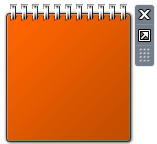
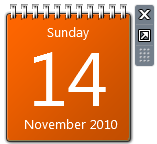
The Calendar gadget in the Windows Sidebar may display blank content, showing only the plain orange background. Also, the Stocks Gadget may not show up when you add it to the Sidebar. This problem is usually caused by a missing scripting run-time registration.

Registering VBScript.DLL

Registering the vbscript.dll file from an admin Command Prompt fixes the problem. Follow these steps:

1. Open an Admin Command Prompt window. To do so, click Start, click All Programs, click Accessories, right-click Command Prompt, and then click Run as Administrator.

2. Type the following command and press ENTER:

regsvr32.exe vbscript.dll

You should see the following message after running the command:

DllRegisterServer in vbscript.dll succeeded.

3. Restart Windows and see if the Calendar and Stocks Gadgets render correctly.
That doesn’t help? Fix the Zones Registry Key

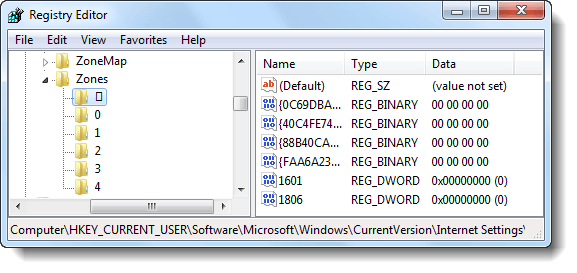
Of late, we’ve seen several cases where an additional IE Security Zone registry key causing this problem. The additional security zone may have been added by a Malware, could appear as a pseudo-graphic number listed before zone number 0. The fix listed below is the same as the one documented in post Gadgets are Not Displayed Correctly in Windows 7 and Windows Vista.

Run the Fix-It Solution from Microsoft

[Windows 7 Users] Download the Fix it solution by clicking the image above, and run the executable. The problem should be taken care of, automatically.

To Fix the Problem Manually

1. Click Start, type Regedit.exe and press {ENTER}

2. Navigate to the following branch:

HKEY_CURRENT_USER \ Software \ Microsoft \ Windows \ CurrentVersion \ Internet Settings \ Zones

3. Under the Zones key, delete the subkey shown with an ASCII character, as in the above graphic.

4. Exit the Registry Editor.

5. Logoff and login back to your account.

Still doesn’t work after trying the above steps? Drop your comment below, and let’s see if we can work on this issue further.


Related Posts


Email SubscriptionPrefer an E-mail subscription?

Enter your email address:

Delivered by FeedBurner

38 Comments

  1. Wim
    said this on Sunday, October 16th 2011 3:20 pm

    what I also discoverd and this could be caused by same course of problem:

    - iGoogle can not be started from IE9 (from Google Chrome and Safari no problem)
    - Logitech device drives of Webcam Pro9000 w7 x64 cannot be installed
    - Sidebare does not work, gadgets do not work as stated, also local gadgets like AVG as well as HP AiO gadget do not work (corrupted on the screen).
    - when starting Google there comes a window right above in the screen, Install Google Crome (this is blue knob which work, normal link) however exit this screen via X in the samll Google screen in IE9 does not work, The cursor normally changes from arrow to hand symbol when on X, now no reaction and action on X.

  2. said this on Saturday, October 15th 2011 7:33 pm

    there is no subkey regarding ASCII character

  3. said this on Wednesday, October 12th 2011 2:16 am

    The latest updates (October 2011) fixes this glitch once and for all!

  4. Jim
    said this on Friday, September 30th 2011 6:40 am

    Tried everything. Stopped working after downloading Norton 360 update and reboot.

  5. mikki
    said this on Thursday, September 15th 2011 4:54 am

    ran a msconfig disabled adobe= success!

  6. Mr. T
    said this on Wednesday, September 7th 2011 1:30 am

    Ken Lovell has the solution above.
    You need to close all gadgets first or it won’t let you delete Settings.ini

    The path on my Windows 7 is:

    Users\name you’re signed in as\AppData\Local\Microsoft\WindowsSidebar\Settings

  7. Mary Lou
    said this on Tuesday, September 6th 2011 1:15 am

    I had tried everything suggested to get my gadget calendar back, but what worked is the note Jonnie posted – Ran a msconfig, and disabled all things adobe. Hooray
    gadgets working again.

    So glad…

  8. Ken Lovell
    said this on Wednesday, August 31st 2011 10:22 pm

    Here’s something that will work when all else fails. Change your folder options so that you can see the hidden folders and files. Then go to your “Users\name you’re signed in as\AppData\Local\Microsoft\Windows\WindowsSidebar” folder and delete the Settings.ini file. Restore your folder view option back to hide hidden folders, files, and drives. Reboot and enjoy…

  9. Jonnie
    said this on Friday, August 26th 2011 1:48 am

    HEY. had ther same problem. Ran a msconfig, and disabled all things adobe. Hooray
    gadgets working again.
    Running win7 pro 64-bit

  10. Allen
    said this on Saturday, August 20th 2011 7:49 pm

    Thanks for your efforts, but to no avail here. I had this happen some time ago, but I can’t remember how I resolved it. it is more annoying than troublesome. I have bookmarked this page so if I remember, I get back.

Leave a Reply