There are situations where you need to open plain-text files having an unknown or unregistered file extension using Notepad. By default, no file association exists for extension-less files and files with unknown extension in Windows. So, to open those files, you use the Open With option and select Notepad from the list.
And, it becomes even more difficult if Notepad is not readily available in the “Open with” sub-menu, in which case you need to browse to select Notepad.exe in the Windows folder every time. Adding the Open with Notepad option in the context menu (for all files) makes the job easy. It would save you a couple of mouse clicks every time.
Add “Open with Notepad” to the right-click menu
To add the Open with Notepad command in the right-click menu for all file types, follow these steps:
- Download openwithnotepad.zip and save it to Desktop
- Unzip the contents (two .reg files) to a folder
- Right-click the file openwithnotepad.reg and then choose Merge. This adds the “Open with Notepad” entry to the context menu for all files.
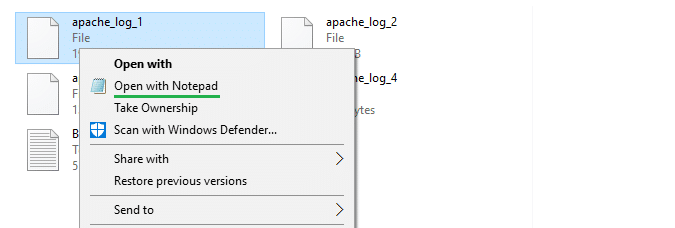
“Open with Notepad” context menu entry.
The above .reg file creates the required registry keys and values for you under the following branch.
HKEY_CLASSES_ROOT\*\shell
If you plan to remove the Open With Notepad option at some time, run the file undo .reg file.
Registry file
Here are the contents of the above .reg file in case you want to make your own.
Windows Registry Editor Version 5.00

[HKEY_CLASSES_ROOT\*\shell\Notepad]
@="Open with Notepad"
"Icon"="notepad.exe,0"

[HKEY_CLASSES_ROOT\*\shell\Notepad\command]
@="notepad.exe \"%1\""
Add “Open with Notepad” as an extended context menu
If you want the “Open with Notepad” option to appear only when using the Shift key during right-click, you can implement it as an extended item, by adding a registry value named Extended. Here is the .reg file that does it automatically.
Windows Registry Editor Version 5.00

[HKEY_CLASSES_ROOT\*\shell\Notepad]
@="Open with Notepad"
"Icon"="notepad.exe,0"
"Extended"=""

[HKEY_CLASSES_ROOT\*\shell\Notepad\command]
@="notepad.exe \"%1\""
Copy the above contents to Notepad, and save the file with the .reg extension, e.g., openwithnotepad2.reg. Double-click to run the file.
Note: Be aware that opening binary files such as .exe, .dll, .com, etc. using Notepad and accidentally saving them would cause the files to become corrupt, and they’ll no longer run. Use this Open with Notepad only for files containing text content.
The registry edits work in all versions of Windows, including Windows 10.
One small request: If you liked this post, please share this?
One "tiny" share from you would seriously help a lot with the growth of this blog. Some great suggestions:- Pin it!
- Share it to your favorite blog + Facebook, Reddit
- Tweet it!


How to make this work with runas? This fails:
runas.exe /user:DESKTOP-K69RNHB\Boomy /env /savecred “D:\Downloads\metapad36\metapad.exe \”%1\””
I see metapad on the right-click menu. But when i click it, i get “This file does not have an app associated with it.”
The following works at command-line:
runas.exe /user:DESKTOP-K69RNHB\Boomy /env /savecred “D:\Downloads\metapad36\metapad.exe myfile.txt”
Not sure if i’m doing the quotes correctly. I’m adding this manually. I’m NOT putting quotes around the whole