Archive for September, 2009

Microsoft Security Essentials Is Now Available for Download

The much awaited security suite from Microsoft, Microsoft Security Essentials (MSE) is now available for public download. MSE provides real-time protection for your home PC that guards against viruses, spyware, and other malicious software.

Microsoft Security Essentials is a free download (requires WGA validation) from Microsoft that is simple to install, easy to use, and always kept up to date so you can be assured your PC is protected by the latest technology.

Download Microsoft Security Essentials. To view the How To Guides and Videos, check out the Security Essentials Software Support page. Be sure to update the definitions after installing the product.

Jumplist-Launcher: Create Custom Application Jumplists in Windows 7

Jump Lists, a new feature introduced in Windows 7, in which a list of destinations and common tasks associated with an application is attached to that application’s taskbar button. For example, if you right-click on the Notepad application button in the Taskbar, you’ll see the list of most recently opened text files. However, using the Jump Lists feature to add multiple applications in a single Taskbar icon (as a launch pad), is not possible natively. There is a program named Jumplist-Launcher which makes this task possible.

Download Jumplist-Launcher, unzip the contents to a folder and then run the executable.

Add as many programs and folders (up to 60) as you need, and click the Create Jumplist button.

Right-click on the Jumplist-Launcher executable and click Pin to Taskbar.

Your custom Jump List is now ready. Simply right-click on the Jumplist Launcher Taskbar button to see the list of programs you added.

Download Jumplist-Launcher (472 KB) from Ali’s Dünnpfiff’s site.

Default Programs Editor – A Useful File Association Editor for Windows 7 and Vista

Default Programs Editor is a very useful tool which helps you to edit file type associations, add or remove AutoPlay handlers and static context menu entries. In Windows Vista and Windows 7, there is no option provided to add or edit context menu entries and static verbs (as in Windows XP’s "File Types" dialog.) Here is where the Default Programs Editor comes in handy.

Features of Default Programs Editor

File Type Settings

  • Add, Edit, and Delete context menu items
  • Change file type icon & description
  • Change an extension’s associated file type

Autoplay Settings

  • Add, Edit, and Delete autoplay handlers
  • Change which autoplay options are available for any media type
  • Change the default autoplay handler

Default Programs Settings

  • Add or Remove default associations

Screenshots

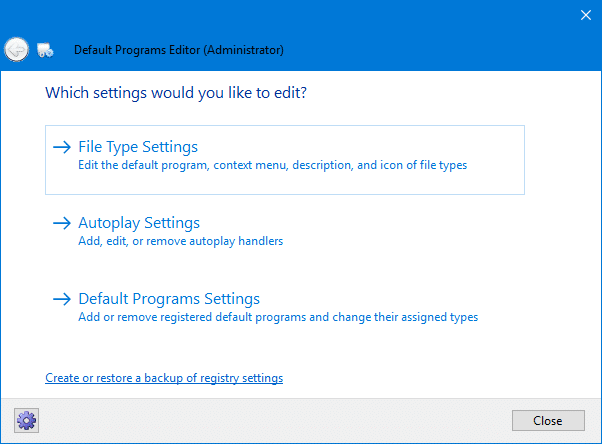
Fig 1: Default Programs Editor main window.


Fig 2: Context Menu Editor. (Remember the File Types dialog in Windows XP?)


Fig 3: Add or Remove AutoPlay Entries and manage settings


Fig 4: File Associations Editor


Fig 5: Additional Program Options

Default Programs Editor is designed for Vista and Windows 7. [Visit the Author's site to download the software.]

How to Enable Quick Edit Mode in the Command Prompt by Default

We saw how to use the mouse to copy Command Prompt text to the Windows Clipboard, by enabling the Quick Edit option in Command Prompt shortcut properties. What if you don’t use a desktop shortcut to open Command Prompt, and rather run cmd.exe directly? Here is a registry edit which enables Quick Edit option by default for Command Prompt. This works regardless of the methods you use to open the Command Prompt window.

This article was edited on Sep 24 2009 to include the method suggested by reader Mike (Thanks, Mike. I’ve clearly overlooked the GUI option.)

Enable Quick Edit by default in Command Prompt

Using the GUI

1. Open a Command Prompt window (cmd.exe)

2. Bring up the menu by clicking the top left corner (or press ALT + Spacebar)

3. Click Defaults

4. In the Options tab, place a checkmark near Quick Edit Mode

5. Click OK.

Using the Registry Editor

1. Launch Regedit.exe and navigate to:

HKEY_CURRENT_USER \ Console

2. Double-click QuickEdit and set its value data to 1

3. Exit the Registry Editor.

This has been tested in Windows XP, Windows Vista & Windows 7, and may work in other Windows Operating Systems as well.

Registry Fix

To automate the above steps, download quickedit.zip and run the enclosed REG file.

Printee for Internet Explorer Makes Printing Web Pages Easy

Do you find it difficult to filter out images, Ads and other unwanted content from web pages (for printing)? You no longer have to manually edit Web pages to remove unwanted content before printing. Have a look at Printee for Internet Explorer. Printee is a Web Printing tool for Internet Explorer which lets you pick, edit and print web page only what you want. Using Printee you can remove images and backgrounds, selectively delete page elements such as advertising, navigation menus and other items, and also change the font, width and page layout style.

For example, the following page:

is stripped down to:

Here are the Features of Printee

  1. Condense any web page down to just the content you want, no anything useless
  2. Reducing your paper and ink usage
  3. What You See Is What You Get
  4. Support Ecofont, Save 20% Ink
  5. Send by Mail, Share with friends
  6. Improve Readability of the Web Page only one key (Ctrl-G)

Download Printee for IE (472 KB) from irido.com. Printee runs in Windows 2000/2003/XP/Vista and supports IE6/IE7/IE8.

Installing Printee for IE adds a green buton to the IE toolbar which looks like this:

If the green button does not appear, you’ll have to customize the toolbar settings in order to add the Printee b button.

See Also

Printee for IE – Screenshots

Printee for IE – Demo Video

Using the Mouse to Copy Command Prompt Text to Clipboard

A useful tip for mousers. Earlier we saw how to copy Command Prompt output to the Windows Clipboard. Did you know that you can accomplish the same using your pointing device (mouse)? Also, you can select a particular section (word or line) and copy it to the Clipboard. Here is how to do so.

1. Create a Command Prompt shortcut (cmd.exe) on the Desktop.

2. Right-click on the Command Prompt shortcut and choose Properties

3. In the Options tab, enable QuickEdit mode, and click OK.

4. Open a Command Prompt window (using the custom shortcut) and type a command.

5. To copy the output, select the text area using the mouse pointer and click the right-mouse button (or press ENTER.)

This tip applies to Windows Vista & Windows 7 as well.

Editor’s note: The above setting works only if you access the Command Prompt using the desktop shortcut that you created earlier. In one of the upcoming articles, we’ll instruct how to make the Quick Edit setting enabled by default, so that it works irrespective of the method you use to access the Command Prompt.

Windows 7 Enterprise 90-Day Trial Is Available From TechNet Evaluation Center

Microsoft TechNet Evaluation Center has made available the Windows 7 Enterprise 90-day Trial pack, so that IT Professionals can test their software and hardware on a final version of the product. Note that you don’t need this Trial pack if you have access to MSDN or TechNet Subscription where you can get the final bits of Windows 7.

The 90-day Trial is the full working version of the Windows 7 Enterprise, and it does not require a product key as it is embedded with the download. The 90-day Trial will shut down once every hour when you have reached the end of the 90-day evaluation period.

To learn about other guidelines and to download the product, see TechNet article Windows 7 Enterprise 90-day Trial.