When you click the Search text box in Explorer, the previously typed search queries (MRU) are displayed in the drop-down box. Also, when you type a search query, the autocomplete lists possible matches as you type. Here is how to clear the search entries individually and collectively, in Windows 7, 8 and Windows 10.Read more
Month: February 2009
How to Change the Icon for a File Type in Windows
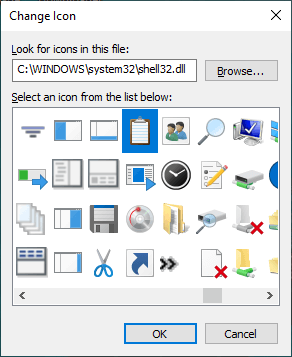
Surprisingly, Windows doesn’t have a built-in option to allow users to set custom icons for file types. If you have a custom file type and the corresponding program doesn’t have a nice-looking icon in its .exe or .dll resource, you can manually change or customize the default icon for that file type.
This article explains how to change the default icon for a file type using different methods in Windows. Instructions apply to all versions of Windows, including Windows 10Read more
Prevent Themes from Changing Desktop Icons and Mouse Cursors
A theme file can contain references to custom Visual Styles, namespace icons, mouse pointers, window metrics, colors and other visual elements. If you wish to preserve the existing icons for the namespace items such as Computer, Documents, Recycle Bin, Network etc, you can change a setting so that applying a custom theme does not affect the existing desktop icons and mouse cursors.Read more
Easily Track Disk Space Usage Using WinDirStat
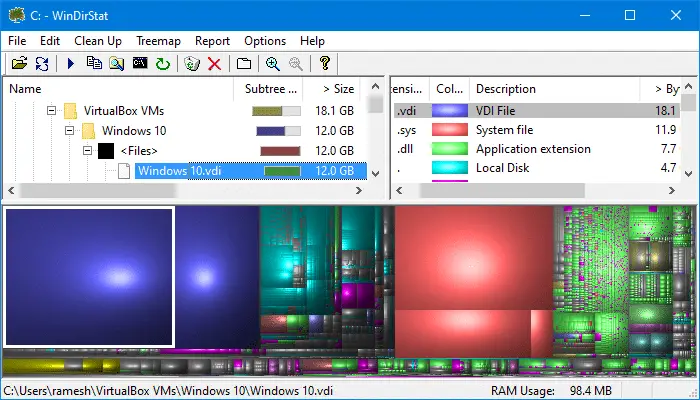
Are you receiving low disk space messages and wondering where has the free space gone? System Restore, Hibernation and Pagefile are the major occupants of disk space, but there could be several other big files and folders buried deep inside sub-directories. Try WinDirStat (Freeware), a disk usage statistics viewer and cleanup tool for Windows. Read more
Using Process Monitor to Track Registry and File System Changes
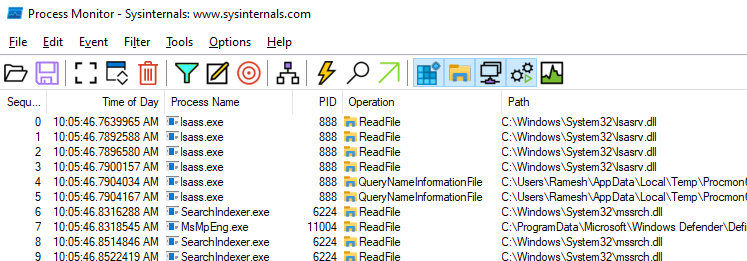
Process Monitor is an excellent troubleshooting tool from Windows Sysinternals that displays the files and registry keys that applications access in real-time. The results can be saved to a log file, which you can send to an expert for analyzing a problem and troubleshooting it.
This article tells you how to use Process Monitor to capture registry and file system accesses by applications. You can also save the events to a log file for further analysis.Read more