“Application not found” Hyperlink Error in Mail

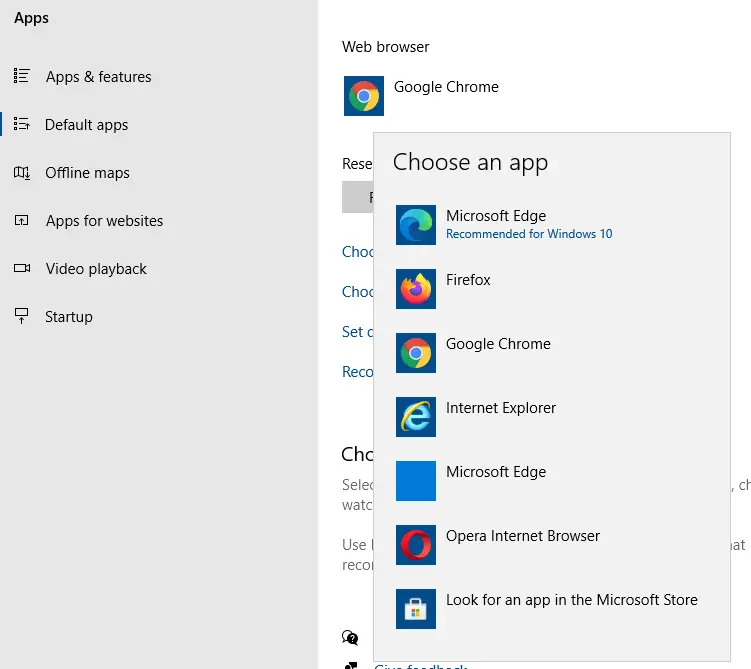
outlook hyperlink error - reset default browser

When you click on a hyperlink in your mail clients such as Microsoft Outlook, Windows Mail, or Windows Live Mail, you may see the Application not found or General failure errors.

General Failure. The application cannot be found.

This error occurs if the default browser is not correctly set, or the html file association and/or http protocol associations are incorrect. The same error may occur when double-clicking an Internet Shortcut (.URL) file in the system.Read more
[Fix] PDF Thumbnail and Preview Not Showing Up in File Explorer

pdf thumbnail and preview using microsoft powertoys

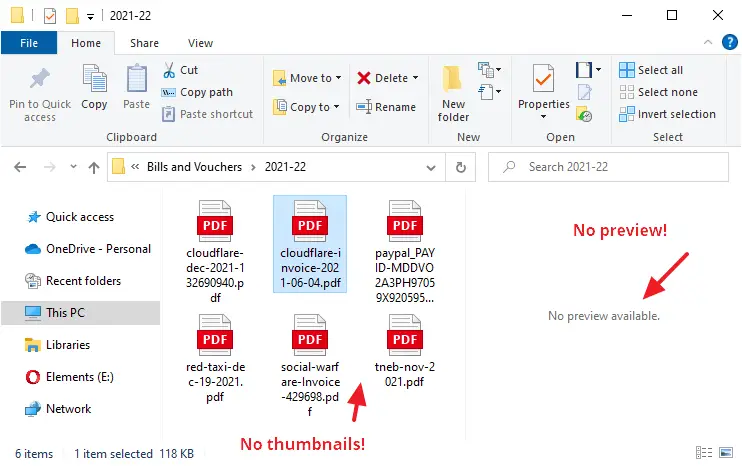
In your Windows computer, File Explorer may not display PDF thumbnails, and instead, show only the default icon assigned for PDF files. This might happen even if you have the option Always show icons, never thumbnails unchecked in the View tab of the Folder Options dialog.

pdf thumbnail and preview using microsoft powertoys
::BEFORE:: — No thumbnail and preview for PDF files

Also, in Microsoft Outlook you’ll see the error when viewing emails that contain PDF file attachments:

The file cannot be previewed because there is no previewer installed for it

This article tells you how to enable PDF thumbnails as well as the PDF preview capability (for the Preview pane) in File Explorer and Microsoft Outlook. The first method (PowerToys) works whether or not you’re using a third-party PDF viewer (e.g., Adobe PDF Reader or Foxit Reader).

Read more

How to Fix the Corrupted Recycle Bin Store Folder

There are situations where you need to reset the Recycle Bin store folder to fix problems such as Recycle Bin not showing the files that have been deleted. In some cases, you may be unable to completely empty the Recycle Bin. Each drive has a hidden and protected folder named $Recycle.bin, which is where the Recycle Bin stores files that you and other users on the computer delete. Windows creates a fresh $Recycle.bin folder automatically after you reset it.Read more

Prevent Internet Explorer Toolbar Layout from being Reset

Every once in a while, Internet Explorer resets the toolbar layout and I need to customize them the way I want, every time this happens. I have Google Toolbar and the default Links toolbar enabled, which I have docked to the extreme right, showing only the chevron.

Occasionally Internet Explorer (or probably one of the browser add-ons) resets the toolbar positions, pushing the Links toolbar to a separate line and thus occupying additional screen real estate. This happens even though the toolbars are in a locked state.Read more

Fix: Accidentally Moved Videos or other Shell folders to D:\ root

accidentally moved special folder to the root drive

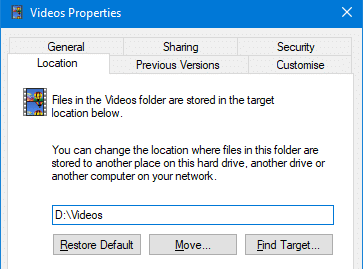
When you relocate a special folder: Music, Pictures, Videos, Downloads, or Documents to a different drive using the Location tab in the Property sheet, make sure you mention the complete target path where you want to relocate the folder.

For example, to move the Videos folder of your user profile to the D:\ drive, type D:\Videos, instead of just D:\. This is because Windows does not automatically append the folder name. In case you don’t mention the complete path, the shell folder will be moved to the root of the drive.

accidentally moved special folder to the root drive

Read more

How to Create System Restore Points using Script or Command-Line

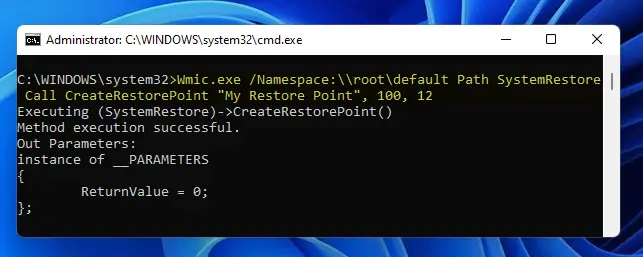
create restore point wmic.exe

System Restore is a valuable feature in Windows that helps you easily recover the system in the event of any misconfiguration. If you’ve been using the System Restore feature regularly, then you need to know how to create System Restore Points with a single click using the command-line. You can also do this by scripting it using WMI or PowerShell.

This article discusses some methods to quickly create a System Restore point in a single click in Windows 11, Windows 10, and earlier Operating Systems.Read more

Mapped drives not seen from elevated Command Prompt and Task Scheduler

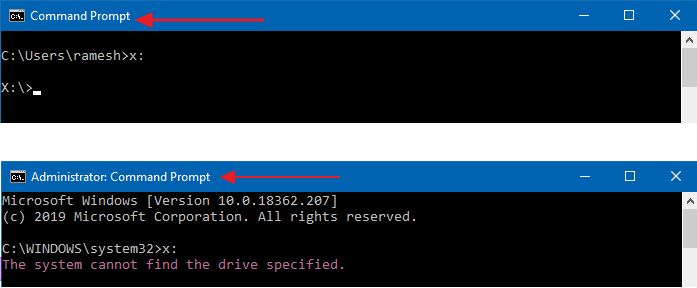
mapped network drive not seen from admin command prompt and task scheduler

When you attempt to access a mapped network drive from an elevated or admin Command Prompt or Task Scheduler (with the highest privileges), the mapped drive won’t be available. Attempting to use the mapped network drives causes the error The system cannot find the path specified (Error code: 0x80070003).

Here are the screenshots from a computer running Windows 10.

mapped network drive not seen from admin command prompt and task scheduler

However, the mapped network drive is accessible from File Explorer and regular (non-elevated) Command Prompt.Read more